Multi-track timeline.
Trim, split, merge, reorder, and duplicate clips. Add footage, adjust speed and volume, and undo or redo your changes.
Separate video, music, and subtitle tracks. Zoom the timeline and fine-tune your edit.
TELEPROMPTER & VIDEO WORKSPACE
Write or generate a script, read it over your camera preview, and record. Adjust the text and scrolling speed, then save or share your video.
Made for iPhone, iPad & Mac

1. Frame the shot.
2. Set your pace.
3. Start recording.
WHAT YOU CAN DO
01 / AI SCRIPT GENERATION
Choose a topic, language, tone, and duration. Add instructions for your audience and platform. Review the generated draft, edit it, and save it as a script.
Generate in English, Polish, Ukrainian, or Russian. AI drafts and factual-risk notes still need your review.
Three ways to feel more confident on camera
CALL TO ACTIONTry one tip in your next video.
Review the draft before saving it to your library.
02 / SCRIPT EDITOR & LIBRARY
Write from scratch, refine an AI draft, or bring an existing document. Keep your scripts readable, organized, and ready for the camera.
On Mac, use a split-view workspace, drag-and-drop imports, and keyboard shortcuts. Scanned image-only PDFs are not supported.
Place the camera at eye level.
Use a short script for each step. Set the scrolling speed to match your speech, then record a test clip to check the framing and sound.
INTERACTIVE TELEPROMPTER DEMO
Press play to scroll the sample script.
Move the slider to change the speed, or pause to stop.
Place your camera
at eye level.
Set a comfortable pace.
Read the script
as it scrolls.
Pause to rehearse
or adjust the speed.
A simplified preview of the teleprompter experience.
APP SCREENS
Switch between recording, scripts,
captions, editing, and export.
Read your script over the camera preview. Adjust its position, text size, and scrolling speed.
View on the App Store A preview of the 2.0 workspace.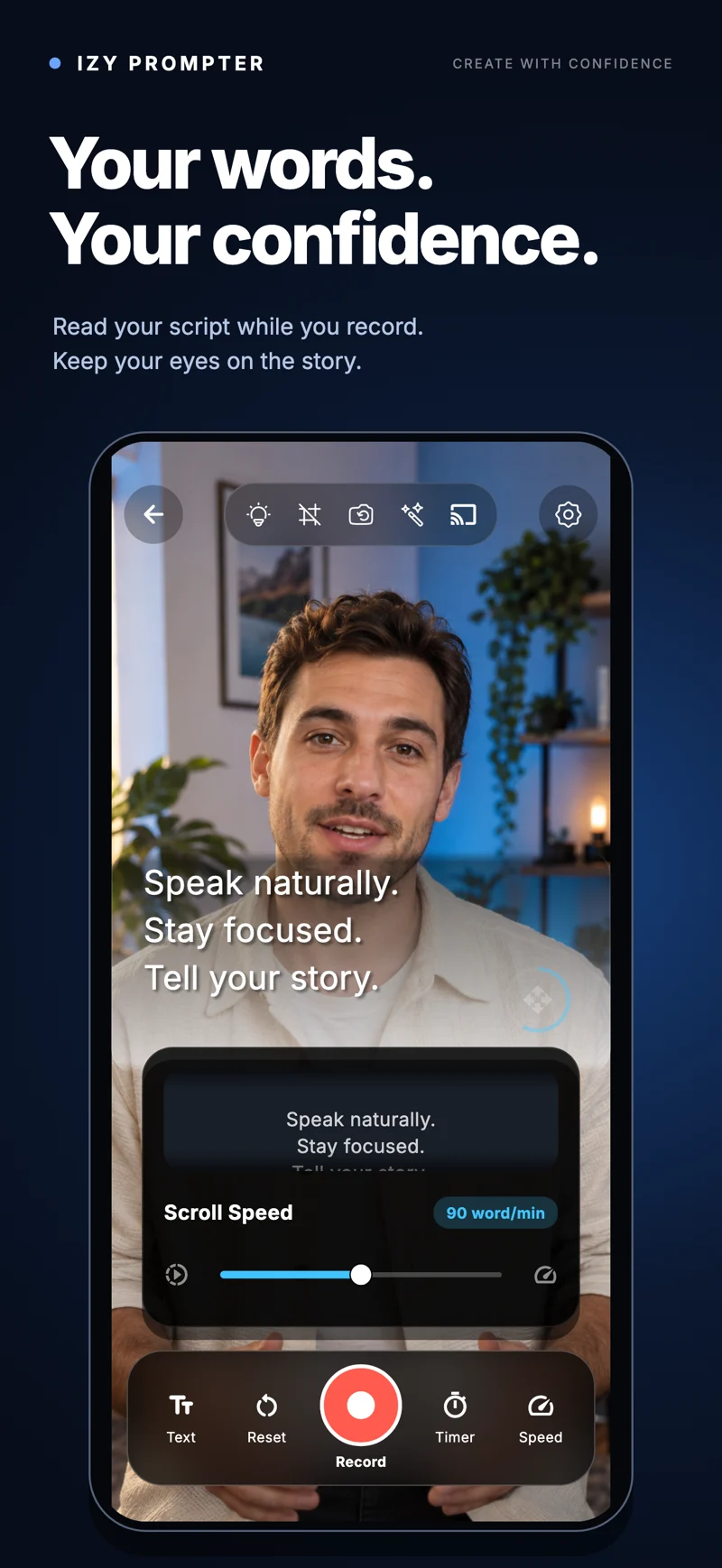
03 / VIDEO EDITOR & AUTOMATIC CAPTIONS
Video editing, automatic captions,
filters, music, and export in the 2.0 workspace.
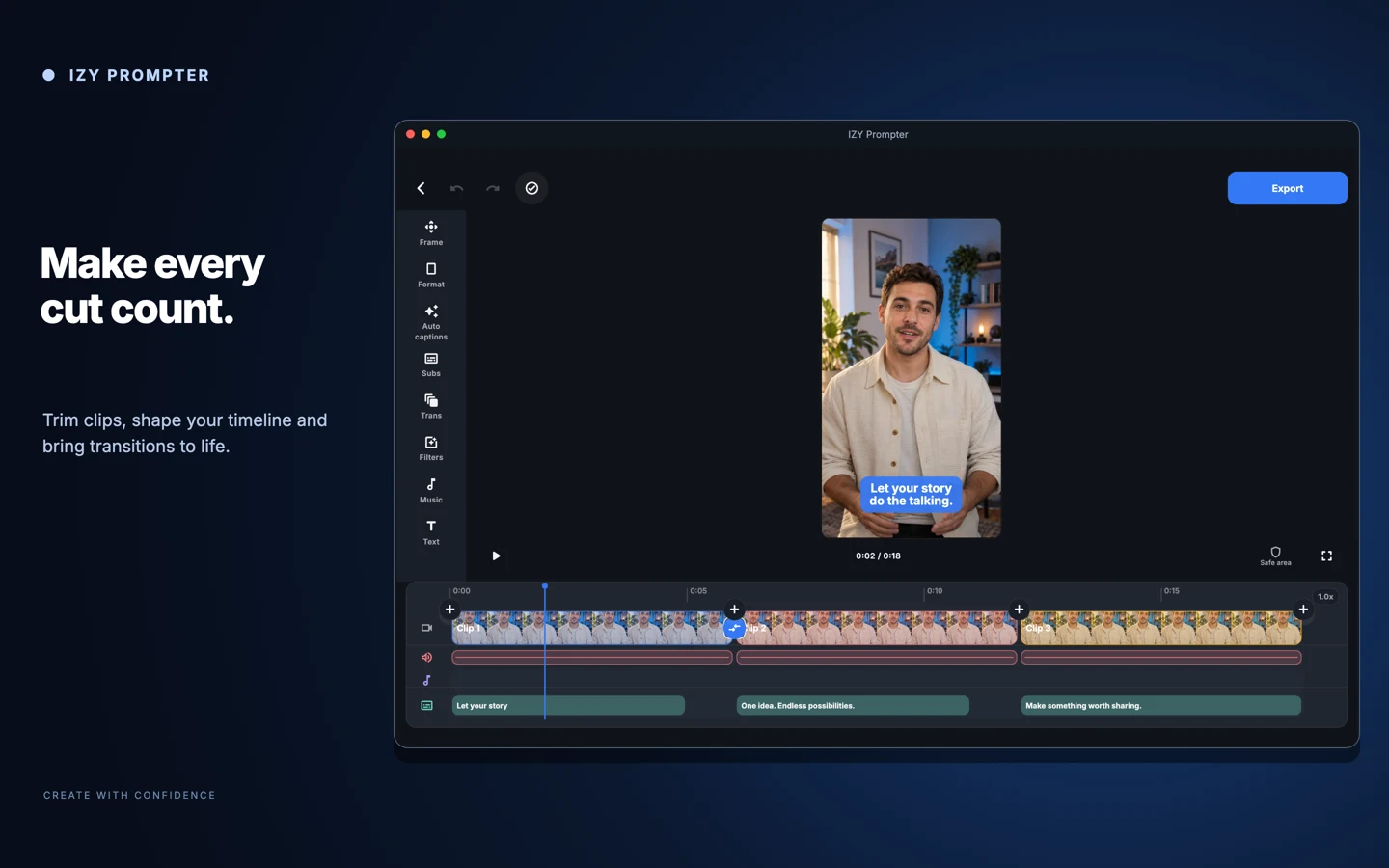
Trim, split, merge, reorder, and duplicate clips. Add footage, adjust speed and volume, and undo or redo your changes.
Separate video, music, and subtitle tracks. Zoom the timeline and fine-tune your edit.
Generate captions for a whole project or a selected clip. Edit the words and timing, then add word-by-word highlighting.
Eight style presets, fonts, outlines, shadows, backgrounds, and animations. Save your own caption style.
Choose from eight video filters and adjust their intensity. Compare with the original and preview transitions using your actual clips.
Rotate, zoom, reposition, and reframe. Add independent text labels for titles and callouts.
Add background music, set its start point and volume, and soften the edges with fade-in and fade-out.
Lower music during captioned speech using subtitle timings.
Switch between vertical 9:16, square 1:1, horizontal 16:9, portrait 4:5, or the original aspect ratio.
Choose crop, fit, or a blurred background. Check your framing with a safe-area guide.
Choose export resolution, quality, and frame rate. Save your finished video or open the share sheet.
720p, 1080p, and up to 4K, with original or selected frame rates up to 60 fps on supported workflows.
This section previews the 2.0 workspace. Feature availability depends on your installed version and device.
04 / CLOUD SCRIPT SYNCHRONIZATION
Sign in to the same account on your devices to sync scripts. Write on Mac and open the script on iPhone or iPad for recording.
Cloud sync requires an account and an internet connection. It syncs your scripts; recordings and video-editing projects are stored locally.
MORE RECORDING TOOLS
Share a link through the iOS share sheet. Turn an article into an AI draft using your saved preferences, then open it from a script-ready notification.
Use a countdown, switch cameras, frame with a grid, adjust exposure, and choose your recording resolution. Monitor audio levels and select an audio input where supported.
Start or stop recording from your wrist with the iPhone recording screen open. Send your script to a supported external display, or use mirrored prompting.
Recordings are grouped by script, with thumbnails and video details. Browse grid or list views, preview a take, and select multiple recordings to share.
Link-to-script generation requires an iOS account/session setup; notifications need permission. Device-specific controls vary by platform.
Enter a topic, then choose your language, tone, duration, audience, and platform. Add must-include points and a call to action. IZY creates an editable draft with reading metrics and factual-risk notes. Review the result and save it to your script library.
Cloud sync connects your script library through your account, including script updates and deletions. Choose manual or automatic sync. Video recordings and editing projects remain local; they are not included in script synchronization.
The 2.0 workspace includes a multi-track video editor, automatic word-timed captions, text styling, filters, transitions, and music. You can reframe for social formats and choose export settings. The site previews this workspace; availability depends on the version installed on your device.
Yes. Import TXT, DOCX, or PDFs with selectable text. You can also export your scripts in these formats. On Mac, drag files into the workspace. Scanned image-only PDFs need text extraction before import.
A teleprompter scrolls your script on screen while you speak. In IZY Prompter, it sits over your camera preview, so you can follow your words while keeping your attention near the lens.
Absolutely. Write and edit your own text, or use AI to create a first draft based on your topic, style, and audience. Review it, add your personality, and you're ready to rehearse.
IZY Prompter is available for iPhone, iPad, and compatible Macs. Check the App Store listing for the latest compatibility details. Features can vary by device and app version.
No. IZY Prompter records your videos without adding a watermark, so the focus stays on your content.
Yes. Adjust scroll speed, font size, text color, shadow, and background. You can also move the teleprompter text to a position that feels comfortable.
IZY PROMPTER FOR IPHONE, IPAD & MAC
Download IZY Prompter to write scripts and record with a teleprompter.
Download on the App Store iPhone · iPad · Mac